

When the assignment has the Google Assignment icon, you should follow the instructions below to submit it.
NOTE: If it is your first time linking your Google Account in a course, you will be prompted to link your Google Account. Ensure that you are logged in to the appropriate account before linking.
| Click on the document itself, where you should see your name at the beginning of the document. | 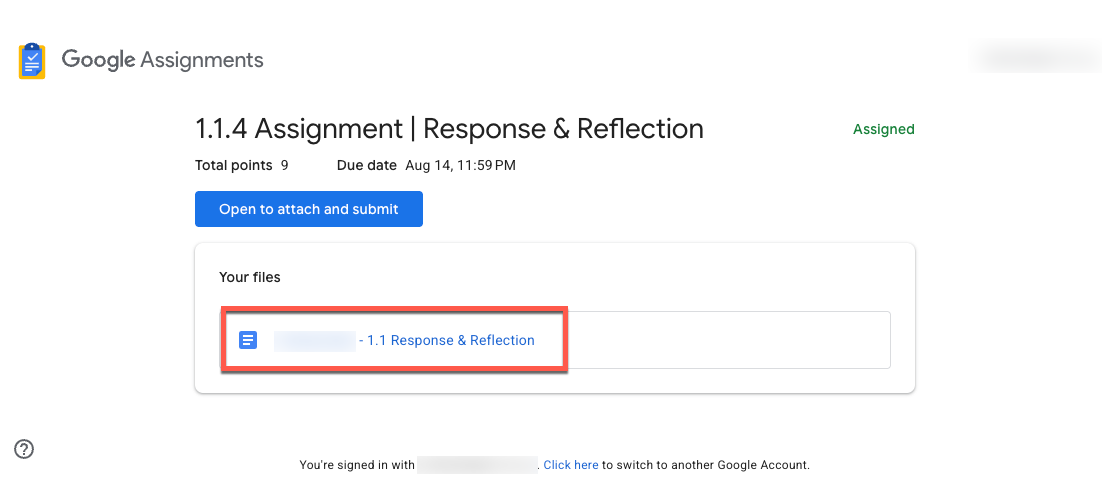 |
| The assignment will open in a new tab of your browser and you can complete your work on that document. Note that your name is at the top of this document and it is now saved in your Google Drive. | 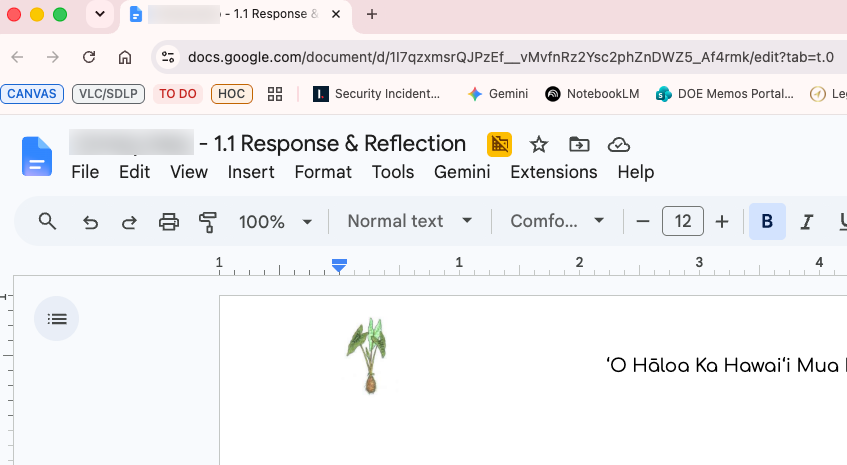 |
When you are done, you can close the tab and navigate back to the Canvas Assignment tab. Choose Open to attach and submit. | 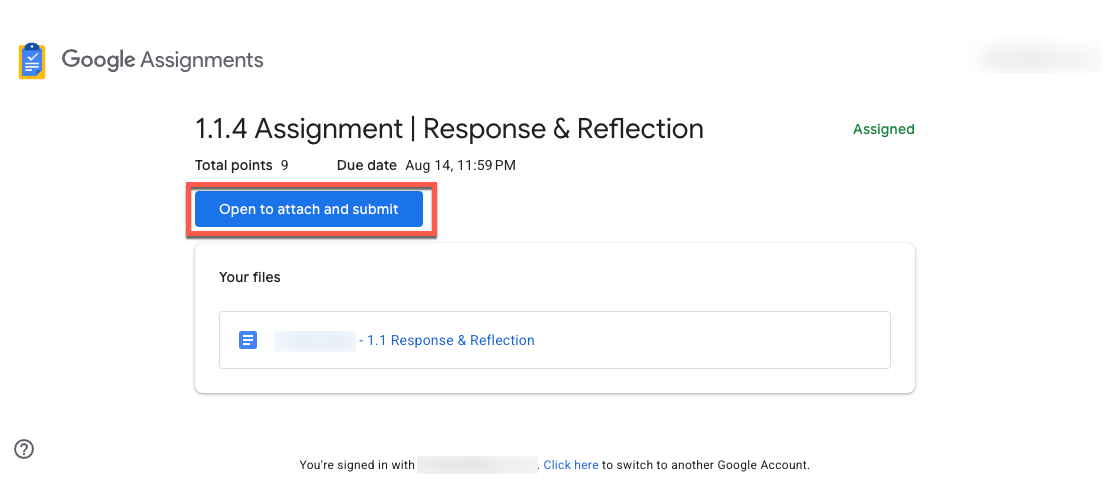 |
| Click Submit. | 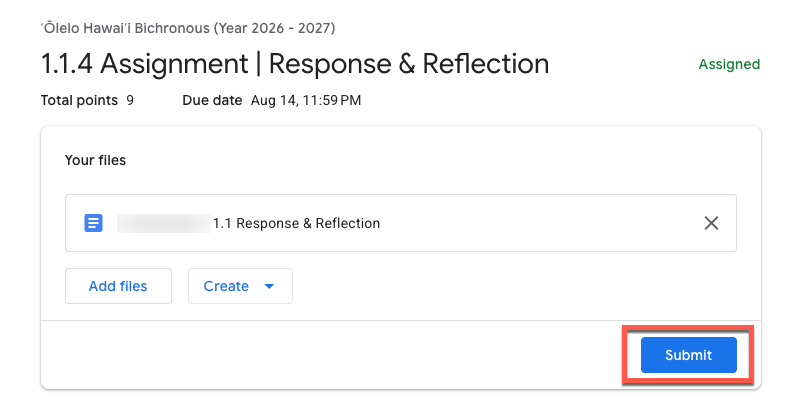 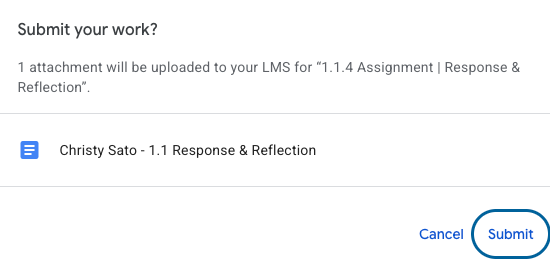 |
| You should see a confirmation message that your files were uploaded to Canvas. | 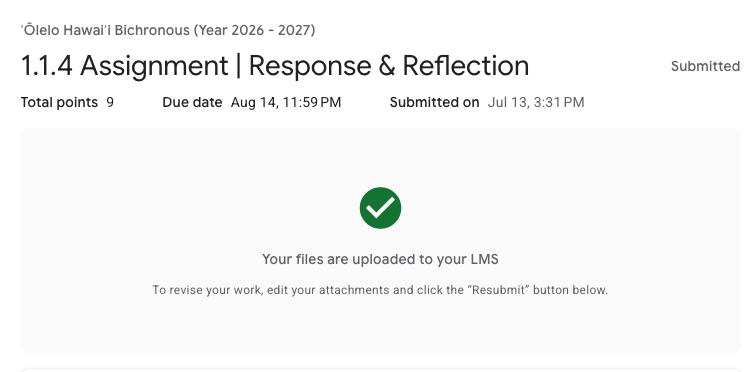 |